A QuickBooks recurring invoice is an invoice that QuickBooks Online builds from a saved template on a schedule you choose. Intuit calls the feature recurring transactions, and the same list also holds recurring expenses, estimates and sales receipts.
This guide follows Intuit's own help pages, opened in October 2026. It covers the three template types, the settings on the template, how to pause or change one, and what the feature leaves for you to do. It describes the product and doesn't recommend it.
Quick answer: In QuickBooks Online, a recurring invoice comes from a recurring transaction template. You pick a type (Scheduled, Reminder or Unscheduled), an interval, a start and an end, and optionally a number of days in advance to create it. The template creates invoices. It doesn't collect payment unless online payments or Autopay are set up as well.
Note: Billing Model is not affiliated with Intuit. Menus, plan features and limits change, so confirm each step in Intuit's help before you rely on it. Every Intuit page cited here carries the date Intuit shows on it.
How a QuickBooks recurring invoice works
It is a template plus a schedule. The template holds the customer, the lines and the terms. The schedule says when to copy the template into a real invoice. The general idea, and how it differs from a recurring payment, is covered in the guide to the recurring invoice.
Intuit's help article on creating recurring invoices and other transactions (updated August 5, 2026) describes three template types.
| Type | What Intuit's page says | Example on the page |
|---|---|---|
| Scheduled | Scheduled transactions other than invoices can be sent automatically without any changes | Rent payments, loan payments, depreciation |
| Reminder | Created at regular times, but you edit and send them yourself | A utility bill that changes each month |
| Unscheduled | Has to be created and sent each time you need it | None given |
Invoices get a sentence of their own on that page: each recurring invoice is saved as a draft, and you review and finalize it yourself. The same page also lists an option to automatically send emails. Read together, the two statements mean you shouldn't assume a scheduled invoice has reached the customer until you've seen how your own account handles the first one.
The page's "What you'll need" list has three items: an active QuickBooks Online subscription, access to what Intuit calls the new QuickBooks Online experience, and QuickBooks Payments only if you want to automate online customer payments. The page is tagged for several plans, including Simple Start, Essentials, Plus and Advanced, and has no sentence saying which plans include the feature. A related scheduling article is tagged for Essentials, Plus and Advanced but not Simple Start, so check the feature list for your own plan.
How to create a recurring invoice in QuickBooks Online
Intuit documents three routes. Each ends with a saved template.
From scratch
- Go to All apps, then Accounting, then Recurring transactions.
- Select New, choose the transaction type (here, an invoice) and select OK.
- Enter a template name and select a type: Scheduled, Reminder or Unscheduled.
- For Scheduled and Reminder templates, set the interval.
- Choose whether to include unbilled charges, automatically send emails, or mark the transaction to print later.
- If you use QuickBooks Payments, the Online Payment section is where you choose how customers can pay online.
- Fill in the invoice details and save the template.
From an invoice you already have
Open the invoice, select Manage (the gear icon), then Scheduling, and turn on Make invoice recurring. Fill in the schedule and save the template. Intuit notes that an existing estimate can't be converted this way.
By copying a template
In the Recurring transactions list, open the Edit dropdown in the Action column and select Duplicate. Intuit says everything is copied except the title.
The settings that matter on the template
Interval. This is how often the invoice repeats. Intuit's recurring sales receipt article (updated August 3, 2026), which uses the same kind of template, gives "Monthly on day 1st of every 1 month" as an example of the field.
Start and end. Intuit's scheduling article (updated August 5, 2026) says a template scheduled for today or an earlier date won't run until the next appropriate date. Its example is a monthly template started today, which begins the following month. For the end, Intuit's page on fixing failed recurring transactions (updated August 5, 2026) refers to three choices: None, an end date, or a number of occurrences.
Days in advance to create. This option on scheduled templates creates the invoice early. Intuit's example: a template dated the 15th with 10 days in advance is created on the 5th, and the transaction date stays the 15th. Leave it blank and the invoice is created on the transaction date. Intuit says creation typically happens between 12:00 am and 5:00 am, depending on your time zone, and can run a little later.
Automatically send emails. One of the three options in step 5. See the draft caveat above.
Terms. The template carries payment terms like any invoice, and the terms set each due date. How one such term turns into a due date is shown in the guide to the net 30 invoice. Terms matter twice in QuickBooks, because Autopay timing is counted back from the due date.
A filled-in QuickBooks recurring invoice example
The customer and figures below are made up. The fields follow the settings Intuit documents, and the layout is an illustration, not a copy of the screen.
RECURRING TEMPLATE
Template name:      Northgate Vet - monthly bookkeeping
Type:               Scheduled
Customer:           Northgate Veterinary Clinic (example)
Interval:           Monthly on day 15 of every 1 month
Start date:         January 15, 2027
End:                After 12 occurrences (last one December 15, 2027)
Days in advance:    10
Terms:              Net 30
Options:            Automatically send emails

Line                                  Qty   Rate       Amount
Monthly bookkeeping                     1   $850.00    $850.00
Payroll processing, per employee        6    $12.00     $72.00
                                            Total      $922.00
The arithmetic: 1 × $850.00 = $850.00, plus 6 × $12.00 = $72.00, gives $922.00 per invoice. Twelve occurrences bill 12 × $922.00 = $11,064.00.
With 10 days in advance, each invoice is created on the 5th and dated the 15th. Net 30 puts the due date 30 days after the invoice date.
| Created on | Invoice date | Due date (net 30) | Amount |
|---|---|---|---|
| January 5, 2027 | January 15, 2027 | February 14, 2027 | $922.00 |
| February 5, 2027 | February 15, 2027 | March 17, 2027 | $922.00 |
| March 5, 2027 | March 15, 2027 | April 14, 2027 | $922.00 |
For the January 5 creation to happen, the template has to be saved before that date. The February due date lands on March 17 because February 2027 has 28 days.
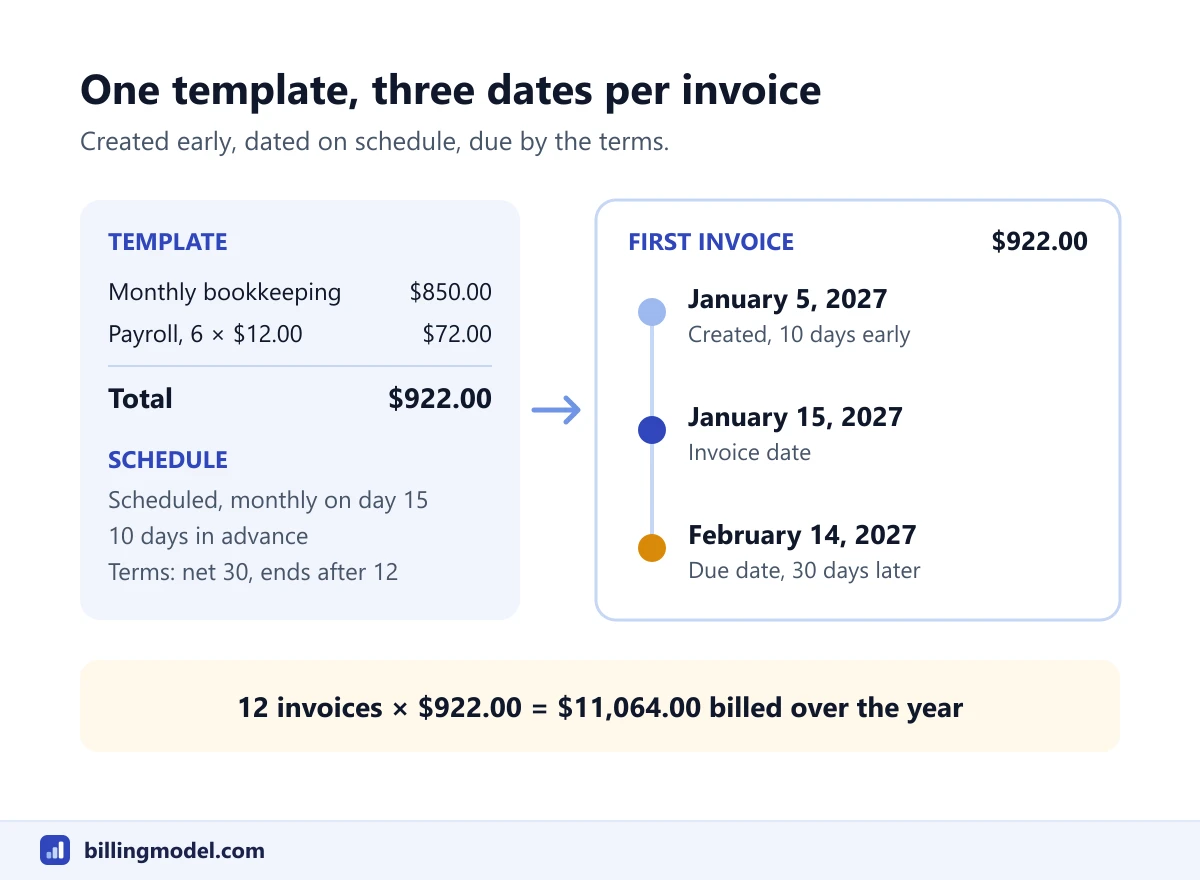 One template, three dates per invoice: created, dated and due.
Editing, pausing or deleting a template
Edit. In the Recurring transactions list, open the Action dropdown for the template, select Edit, make the change and select Save template. Intuit's scheduling article says changing the days-in-advance value doesn't change any existing transaction.
Pause or delete. Intuit's Autopay article (updated August 3, 2026) gives the path as Settings, then Lists, then Recurring Transactions, with Pause and Delete in the Action column. That article and the troubleshooting page reach the list through Settings, while the create and scheduling articles use All apps, so you may see either path.
Use it early. Select Use from the same dropdown to create an invoice by hand. Intuit warns that this doesn't stop the automatic run, so the scheduled copy still arrives. Its suggested workaround is to switch the template to Reminder, delete the reminder when it appears, then switch back to Scheduled.
The pages opened for this guide don't say what pausing does to invoices that already exist. An issued invoice is its own record, so check your open invoices after pausing.
What a recurring invoice in QuickBooks does not do
It creates invoices. It doesn't move money. Intuit documents collection as separate features, each with its own conditions:
- Online payment on the invoice. Needs QuickBooks Payments, an optional service with per-transaction rates.
- Autopay. The customer enrolls from the invoice email. Intuit's Autopay article says it requires QuickBooks Payments, applies to invoices that total $5,000 and below, and isn't available on a daily interval.
- Recurring sales receipts, which charge a stored card or bank account.
The guide to QuickBooks recurring payments covers all three.
The split follows the rules outside the software. In the United States, Regulation E says preauthorized electronic transfers from a consumer's account may be authorized only by a writing signed or similarly authenticated by the consumer. Other countries have their own mandate rules. An invoice needs no such permission, because it takes nothing.
It also doesn't chase payment. OpenStax's finance textbook notes that accounts receivable are evidenced by an invoice and that a receivable's age is the number of days since the credit sale. Twelve recurring invoices are twelve receivables, and an accounts receivable aging report is where unpaid ones show up.
Common mistakes with recurring templates
- Assuming "scheduled" means "sent". Intuit's page says recurring invoices are saved as drafts for you to finalize.
- Starting today. A template that starts today or earlier waits for the next scheduled date, so the period you meant to bill first has no invoice.
- Reading the creation date as the invoice date. With days in advance set, the invoice appears early but keeps its scheduled date.
- Using a template by hand and forgetting the automatic run. The result is two invoices for one period. A duplicate that was already sent is corrected with a credit memo.
- Letting the end pass unnoticed. Intuit's troubleshooting page says a template creates transactions automatically only while its type is Scheduled and it hasn't reached its end date or maximum occurrences.
- Editing a template a customer has on Autopay. Intuit lists six changes that cancel Autopay: the total, how often it recurs, the terms, the payment options, the email address and the customer's name.
- Never reviewing it. Intuit recommends reviewing templates regularly so payment methods, prices and intervals stay accurate.
Frequently asked questions
Does a QuickBooks recurring invoice send itself automatically?
Not necessarily. The template has an option to automatically send emails, but Intuit's help page (updated August 5, 2026) also says each recurring invoice is saved as a draft that you review and finalize. Look at the first invoice a new template produces before assuming the rest have gone out.
Can I turn an existing invoice into a recurring one?
Yes. Intuit's steps are to open the invoice, select Manage, then Scheduling, and turn on Make invoice recurring. An existing estimate can't be converted and has to be set up as a new recurring estimate.
Why wasn't my recurring invoice created?
Intuit's troubleshooting page lists the usual checks: the type must be Scheduled, and the template must not have passed its end date or number of occurrences. It also suggests re-saving the template after a sales tax change and, if it keeps failing, recreating it and deleting the old one.
Does a recurring invoice charge the customer's card?
No. The template only produces the invoice. A card or bank account is charged only if the customer pays online, enrolls in Autopay, or you run a recurring sales receipt with their authorization. Intuit's pages tie automated payments to QuickBooks Payments, which it also calls Merchant Services.
What is the Reminder type for?
For invoices whose amount changes. Intuit's example is a utility bill that differs each month: the template is created on schedule, and you edit and send it yourself.